
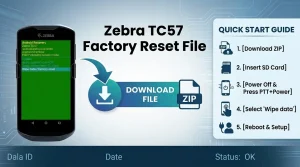
Zebra TC57 Factory Reset File Info:
- Device Model: Zebra TC57
- File Type: Official Factory Reset / Enterprise Reset Firmware (
.zip) - Price: 100% Free
- File Source: Official Zebra Support Portal
⚙️ How to Factory Reset Zebra TC57 (Step-by-Step)
Step 1: Download & Copy the Reset File
- Download the correct
FactoryReset.zippackage for your device’s Android version from the official Zebra portal. (Note: Do NOT extract or unzip the.zipfile.) - Copy the
.zipfile directly to the root directory of a microSD Card and insert it into your Zebra TC57 device.
Step 2: Boot into Android Recovery Mode
- Power off your Zebra TC57 completely.
- Press and hold the PTT / Left Scan Button, then press the Power Button.
- Release both buttons as soon as the Zebra logo appears on the screen. The Android Recovery Menu will load shortly.
Step 3: Apply the Reset File
- Use the Volume Down button to highlight “Apply update from SD card” and press the Power Button to select it.
- Navigate to and select the
FactoryReset.zipfile stored on your SD card. - Wait 1–2 minutes for the reset process to complete.